Using Core FTP LE
To make a Web page available on an Intranet or the Internet, we need to store them on a Web server. We will be transferring our files to a Web server using the File Transfer Protocol or FTP. To accomplish this, you will need an FTP application. We will be using a freeware program called Core FTP LE. If you already have a different FTP program installed on your computer, you can use it to access your student Web site if you can use the information in this handout and adapt it to your program.
For students taking a Web design course at Metropolitan Community College, a student Web site is created on a Web server administered by the college. Using FTP, you will be able to connect to your student Web site on the Metro Web server and upload and download your Web pages to the server. All files that you create while completing the Learning Activities, Homework Assignments and projects will be stored on your student Web site on the Metro server. Realize that your student Web site is open to the world through the Internet. You are responsible for it's content. Please do not abuse this privilege. Please review the Server Guidelines at this time if you haven't already done so.
All of the student Web sites have been created on a Web server located at the URL http://info1002.mccinfo.net. Your Webs have been named using the username that you use to log into the online course or on to a workstation on campus. This is usually your first initial and entire last name and possibly your middle initial and/or followed by a number.
Downloading and Installing Core FTP
Core FTP LE is a freeware program that can be downloaded and used for free for personal, educational and non-commercial use. Core FTP LE is installed on the computers at the college. The download instructions are only provided for those students who would like to download and install it on a computer off campus.
 |
If you need to download the Core FTP LE program at home, follow the first three steps:
- Go to http://www.coreftp.com/download.html to download the file coreftpline1.3.exe (2.7M).
- Select RUN from the File Download window. Follow the screen instructions for installing it onto your system.
|
Connecting to Student Web Server
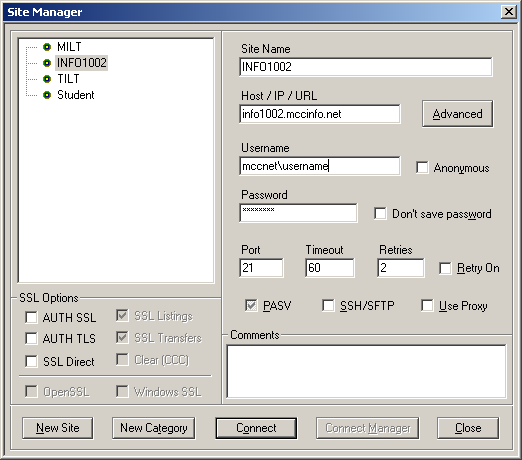
When connecting to your student Web site on the Metro server you will need to use the following information:
FTP server: info1002.mccinfo.net
Login: mccnet\username
You must enter mccnet\ before your username. Your username is usually your first initial and last name. Your middle initial and/or a number may also be included. Your username is the same as the username you use when you log onto a workstation at Metro or your Online server.
Password:
Your password is the same as you use for the Metro network and online server.
*NOTE: The Password Center ( http://www.mccneb.edu/password ) is a new web resource available to all students and staff. This web site allows you to change (reset) your password even if you don't know your username and password, provided the personal information you enter to verify your identity, matches the information the College has in it's database.
Using Core FTP LE
Use the Site Manager to set up the FTP connection as shown below using the information discussed above:
Core FTP Help and Tutorials
There are tutorials available on the Core FTP site will help you to connect to a server and download/upload files. Please use refer to these tutorials to help you get started using Core FTP LE:
As of 3/7/07, there were tutorials (http://www.coreftp.com/doc/) available for the following list of tipics:
# 1: Connecting to a server
# 2: Transferring Files
# 3: Editing Files
# 4: Schedule FTP Transfers
# 5: Command line FTP
# 6: HIPAA
# 7: Ascii vs Binary Transfers
# 8: Encryption / Decryption
# 9: OpenPGP Support