INFO 1311 - Web Page Creation
Assignment 3 (50 points)
Graphic Resources
Create a Web page that provides information about your goals and hobbies. You will need to add at least two educational goals, at least two hobbies or interests or yours, and links to at least two of your favorite web sites. You will also need to include a photo of yourself that has been optimized for the web.
SAMPLE PAGE: Your page should look similar to this except for the format of your h2 elements which you are allowed to format on your own.
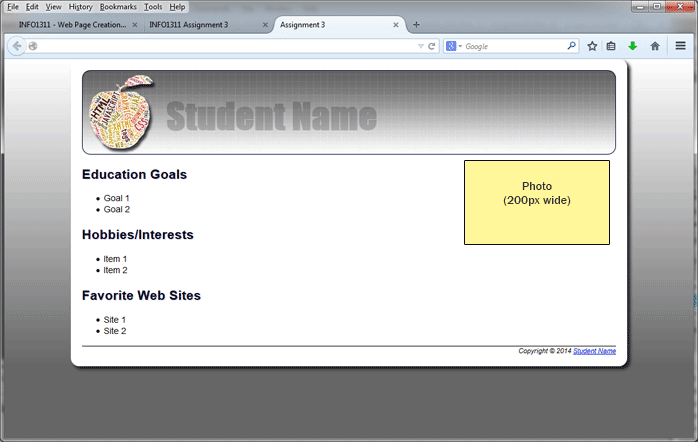
HTML Page:
Use the following information to help you create the HTML page:
- Using a text editor, create a new web page that validates as an HTML5 file. You must also follow the "best practices" explained in the handout in Module 1 named "Style Guide". Save the page as allaboutme.html in your module3 folder.
- Don't forget to include the Opening Comment as explained in the Style Guide in Module 1.
- Link the external CSS file named assignment3.css to the allaboutme.html file.
- The content of this page must include the following:
- The #container style should be applied to all of the content on the page using the div tag. The opening div tag should be placed right after the opening body tag and the closing div tag should be placed right before the closing body tag. All the content on in the body is nested within the opening and closing div tags.
- Include the header and footer elements
- In the header, the h1 element "Student Name" shown in the sample page above should be replaced with your first and last name
- Define the three sub headings as h2 elements.
- add an inline image tag at the beginning of the first h2 element "Education Goals". (Remember that the src, alt, width, and height attributes are REQUIRED in all inline image tags.) The image should be a digital picture of you. You will need to optimize it and scale it to be 200 pixels wide (the height may vary). Use the online editing tool Pixlr at http://pixlr.com/ to scale the image (review the Image Editing learning activity for help using this tool). Apply the class style named .photo to the image tag.
- add an unordered list with at least two items in each list under all of the h2 elements. You should include content explaining your educational goals, hobbies or interests, and links to your favorites web sites in these lists.
- Include a footer at the bottom of the page with the copyright symbol and your name that is an email link to your Internet Email address. Apply the footer element to define this content
CSS Page:
Use the following information to help you create the CSS page:
- Using a text editor, create a new external CSS page. Save the page as assignment3.css in your module3 folder.
- Create a rule to control the body element as follows:
- define the background color to be #666666
- configure a linear gradient background image using the colors #ffffff starting at the top and ending with #666666 at the bottom.
- set the background image not to repeat
- Use Arial, Helvetica, sans-serif as the group of font families
- Define all four margins to be 0px
- Create an id rule named #container that will be used to create a box that will hold all of the body content:
- set the width to 960px
- define the padding for all four sides to be 20px
- the left and right margins should be set to auto
- define the background color to be white
- create a shadow effect using the box-shadow property using 5px for the horizontal offset, vertical offset and blur radius. Use #1e1e1e as the color value.
- define rounded corners using a 15px border
- Create a rule for the header element:
- Use the image background.jpg as the background image for this element. It should not repeat. To use this image you need to save it to your local drive in the module3 folder by following the link and then right-clicking on the image and choosing "Save Picture As..."
- Height should be 150px
- add a 1px solid black border
- define rounded corners using a 15px border radius
- Create a rule for the h1 element:
- Use Impact and sans-serif as the group of font families
- the font size should be 4em
- increase the padding at the left to position the text as shown in the illustration above
- define the text color using the HSLA method to be black and 0.2 for the alpha value
- Create a rule for the h2 element using the properties you want to use
- Create a class rule named .photo. Add the float: right; declaration to this rule. The float property wasn't covered in this chapter but it is used to position a block element. It also allows the content that follows the element to wrap around it.
- Create a rule for the footer element with at border at the top only, content aligned to the right, font size is .8em, and italic
- Use the W3C validation tools to validate your HTML and CSS files. Make corrections to your code if necessary until they validate.
When Finished...
All students need to upload your assignment to the server and modify your INFO1311 home page (default.htm) as instructed below:
- Using FTP (FileZilla), upload the module3 folder to the server. Make sure that the folders and files stay organized on the server exactly the same as they are organized on your local drive.
- Open your default.htm file created in Assignment 1 and add a link to your Assignment 3 by pointing to the allaboutme.html file in the module3 folder.
- Save the default.htm file and upload it into into the public_html folder on the server. You will replace the file that is already there by the same name. I recommend that you open your revised INFO1311 Home Page that you uploaded to the server
in the browser and test your links to your Assignments. Go to the address http://student.mccinfo.net/~username (replace username with your actual username).
- Copy the URL to your assignment into the Assignment 3 dropbox in Canvas.
